Cloth Tool tutorial #4: Live Link — edit textures and meshes, see them live
·2 min read·0 views
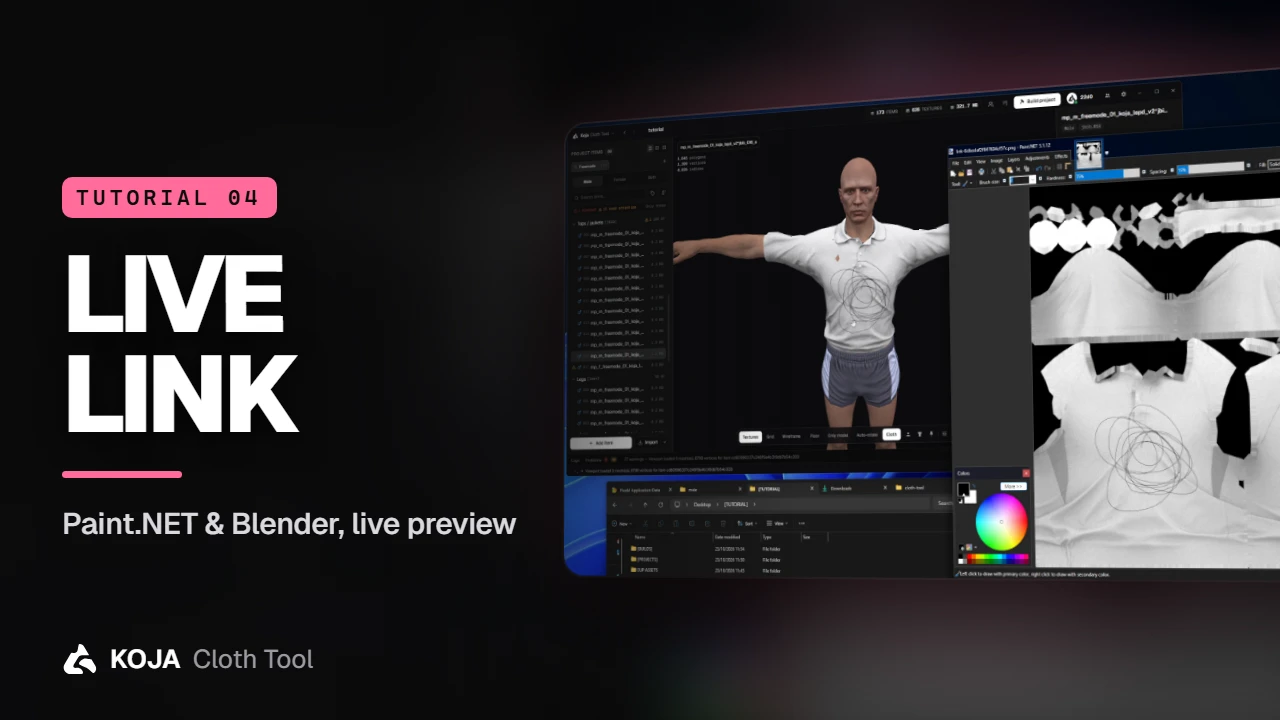
Paint a texture in Paint.NET or Photoshop, push a mesh around in Blender, hit save — and watch the garment change in the preview. No re-importing, no DDS by hand.
The slowest part of clothing work used to be the round trip: export, edit, convert, re-import, look, repeat. Live Link removes it. You edit in the tools you already use, and every save lands on the model in front of you.
Set it up once
Open Settings → Plugins & Live Link. Live Link is on by default. Here you choose how saved changes are applied, point the app at your editors — Photoshop, GIMP, Substance 3D Painter, Blender, or any other app — and install the plugins in one click.
Textures: Edit in…
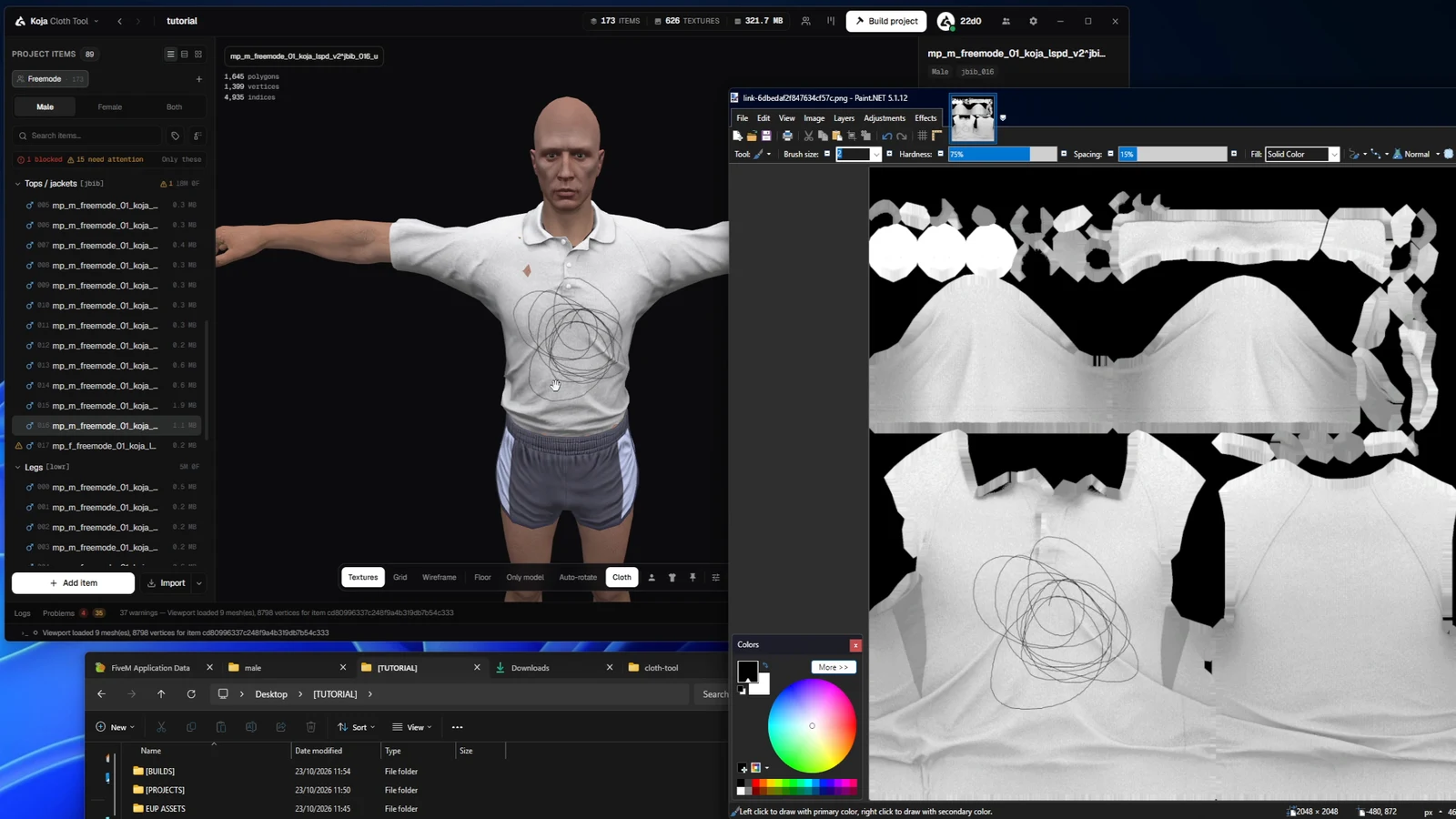
Right-click a texture and choose Edit in, then pick your image editor. The texture opens as a normal image. Draw on it, save, and the change shows up on the garment straight away. No re-importing, and no converting to DDS by hand.
tip
Keep the editor and the app side by side. Every save is a live preview, so you can nudge a logo or a seam until it sits exactly right.
Meshes: Open in Blender
Meshes work the same way. Right-click an item, Open in → Blender, and Blender starts with the garment already loaded on the ped. Move vertices, sculpt, fix a clipping sleeve — the preview follows every change live. Undo in Blender, and the preview snaps back too.
Textures in your image editor, meshes in Blender, the result right in front of you. That's Live Link — see the Live Link docs for every option.
← Previous: Build your FiveM resource Next: Share items as .kct packages →
New to the tool? Download Koja Cloth Tool — it's free to start. Full documentation lives at docs.kojascripts.eu, and if a pack misbehaves, ask us on Discord.